



1. What is the Chat feature?
The Chat feature is here to help teachers and guardians communicate smoothly.
With Chat, you (the guardian) can message a teacher first. Note that some teachers may limit chatting until you've signed up for a class.
2. I want to send a teacher a message!
Want to start a chat with a teacher? Here's how.
2-1. How to request a chat from the class detail page
Go to [Class Detail Page > Ask a Question > Write your message > Send].
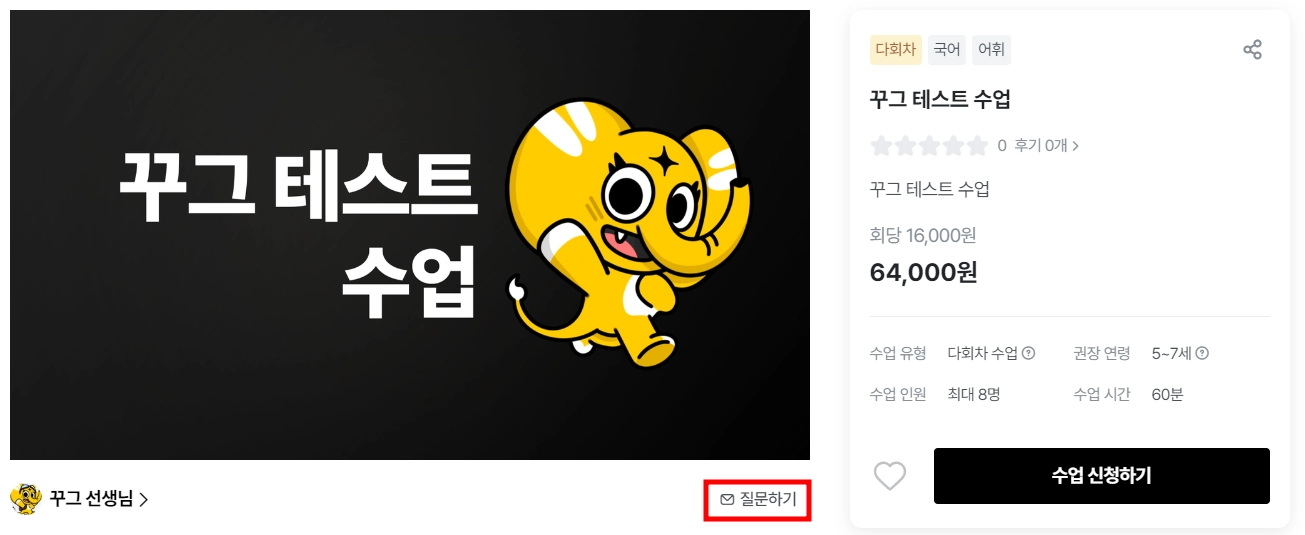
2-2. How to request a chat from the teacher's profile page
Go to [Teacher Profile Page > Ask [Teacher Name] a Question > Write your message > Send].
2-3. When the teacher accepts your chat request
The first time you message a teacher, they'll need to accept your chat request.
Once they've accepted, you can chat anytime afterward without needing approval again.
2-4. How to message a teacher before signing up for a class
Whether you can chat before signing up depends on whether the teacher allows messages from non-enrolled guardians. Please see the images below.
If the teacher does not allow chats from non-enrolled guardians
•
The Ask a Question button is disabled, so messages can't be sent.
3. Where can I find my chats?
•
Go to [Gguge homepage > speech-bubble icon (top right) > Chat] to view and reply to all your messages.
•
When you receive a new message, a red dot appears next to the [speech-bubble icon at the top right of the Gguge homepage].
•
You can also see your full chat history.
!Untitled
!Untitled
•
Up to 4,500 chats are shown. Beyond 4,500, the oldest ones are deleted first.
•
Once you've chatted with a teacher, you can pick the conversation back up anytime, whether or not the class has ended.
3-1. New chat notifications
•
When you access the web on mobile/PC, a red dot on the speech-bubble icon (top right) lets you know you have new messages.
•
On top of that, if you have unread messages, we'll send you a KakaoTalk notification every day at 10:00 AM and 7:00 PM, so please keep that in mind.
•
To receive push notifications, download the [Gguge] app from the Play Store / App Store.
4. Are there any tools I can use in Chat?
We've added several handy features to make chatting more convenient.
4-1. Read status
•
If the teacher hasn't read your message yet, the "1" mark stays.
!Untitled
•
Once the teacher reads your message, the "1" mark disappears and shows as read.
4-2. Sending files
If you have homework to turn in or want to send the teacher a file, you can send photos or files like Word, Excel, and PPT.
•
You can check the upload status of a file, as well as how long it stays available to download.
•
The maximum file size is 25MB, and you can attach up to 5 files at a time.
Please note the file availability period!
•
Attachments are available for 14 days from the date they're sent.
•
Once that period ends, files can't be viewed or saved, so please save any attachments you want to keep within the period.
Supported file types:
•
doc, docx, xls, xlsx, ppt, pptx, pdf, txt, hwp, image/*
•
Audio: wav, mp3, off, gsm, flac, aiff
•
Video: mp4, avi, mkv, wmv, mov
4-3. Copying messages
You can copy messages you've sent or messages you've received from a teacher.
•
On PC, [right-click > Copy].
•
On mobile web or the app, [press and hold the message bubble for 1–2 seconds > Copy].
5. I sent a message by mistake! What do I do?
You can only delete messages within 5 minutes of sending them, regardless of whether the other person has read them.
On PC, hover over the message, right-click, and select [Delete]. On mobile, press and hold the message, then tap [Delete].
Please note that deleted messages are hidden from both the sender and the recipient, and are replaced with the text "This message has been deleted."
6. Is there anything to keep in mind when using Chat?
6-1. Reporting a message
Did a teacher leave an inappropriate message or reply? 
You can report it via [Click the message > Report > Select and enter a reason > Submit].
On PC, hover over the message, right-click, and select [Report]. On mobile, press and hold the message to find the [Report] button.
•
If a teacher sends something unrelated to the class or otherwise inappropriate, please feel free to ignore it or report it. Gguge will review and respond quickly.
•
You can report a message at any time with no time limit, and you must include a reason when you do.
•
When you report a message, it's hidden right away for you only, and the teacher won't know it was reported. Once the report has been handled, the teacher will see it marked as "This message has been reported."
Examples of messages you can report
You don't need to reply to any of the following, and you're welcome to report them so Gguge can review them quickly:
•
Content unrelated to the class you took
•
Content containing personal information such as email or phone number
•
Content that slanders or defames others
•
Content that violates public order and decency
•
Content that infringes the copyright or other rights of the company or a third party
•
Content created by stealing someone else's identity, or content that tampers with or alters information entered by others without permission
•
Content that goes against the purpose of posting, such as repeatedly posting the same content
•
Content that collects and posts URL information from sites that prohibit using their posted information on external services
•
Any other content deemed to violate relevant laws or Gguge's detailed terms of use for individual services
If you'd like to know more about our Chat policies, please check the related policy.
If you have any other questions, please reach out to the Gguge Customer Center. 
